Schedule by Location: See Pool, Classroom, and Open Water at a Glance
Color the training schedule by where each session happens and filter to one or more locations. Spot open pool time, check classroom space, and read a busy week without opening a single class.
Start 60-Day Free TrialYour Locations, Right on the Schedule
When most of your classes are Open Water, a schedule colored by class type is a wall of one color. Coloring by location shows how each class moves from classroom to pool to the dive site.
Color by Class or Location
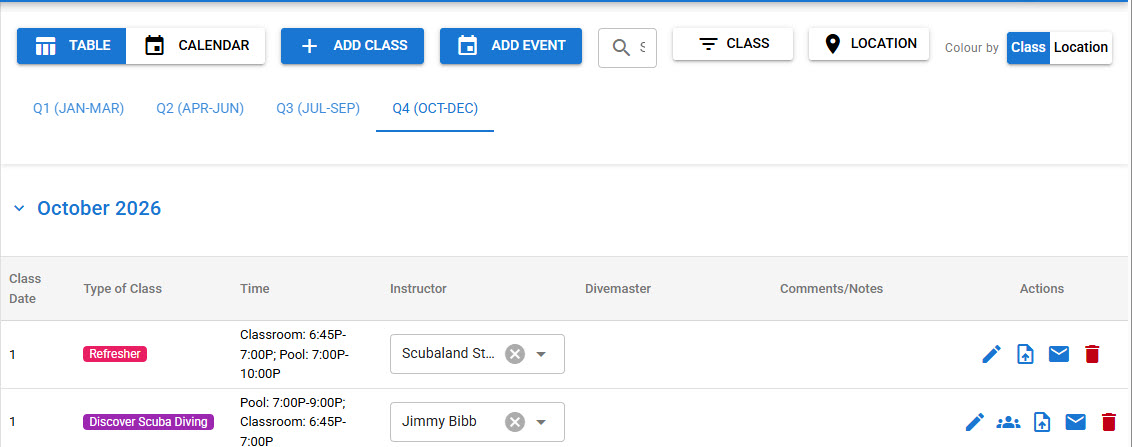
A Color by toggle on the Training Schedule toolbar switches between class type colors and location colors. Each location uses the color you already set on the Locations tab, and DiveCrewPro remembers your choice.
Every Session in Its Location's Color
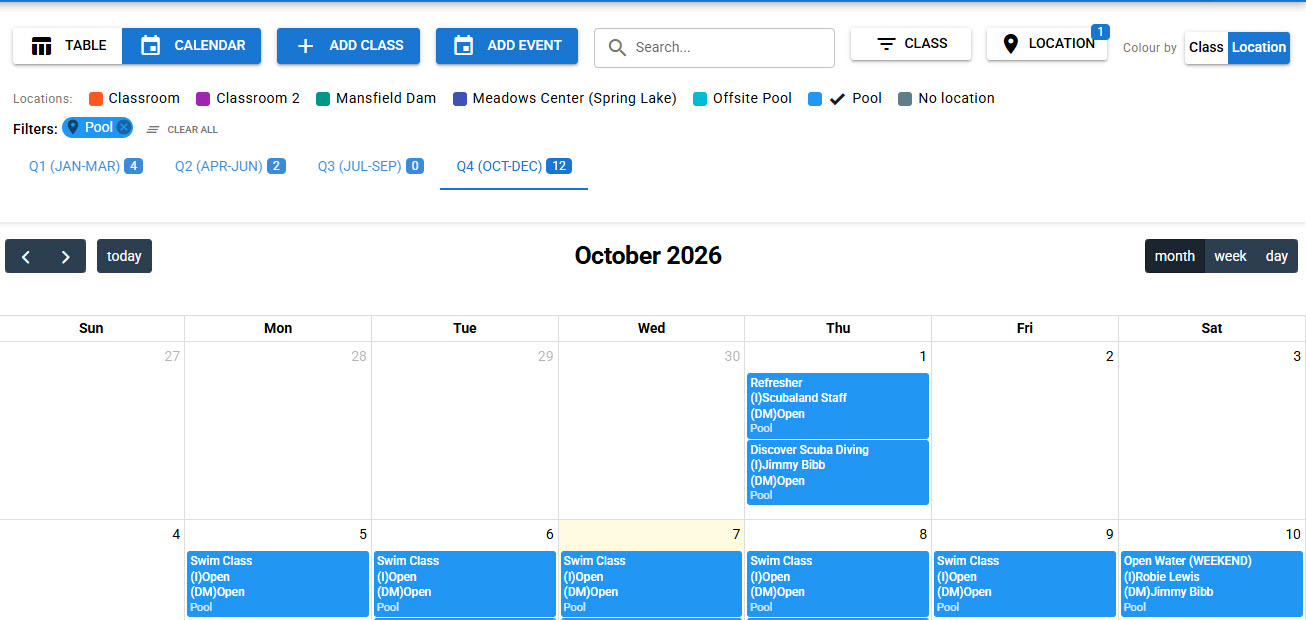
In the calendar, each session takes the color of where it happens and month view prints the location name. A class that starts in the classroom, moves to the pool, and finishes at the lake shows each day in its own color. Sessions with no location get their own color too.
Filter to One or More Locations
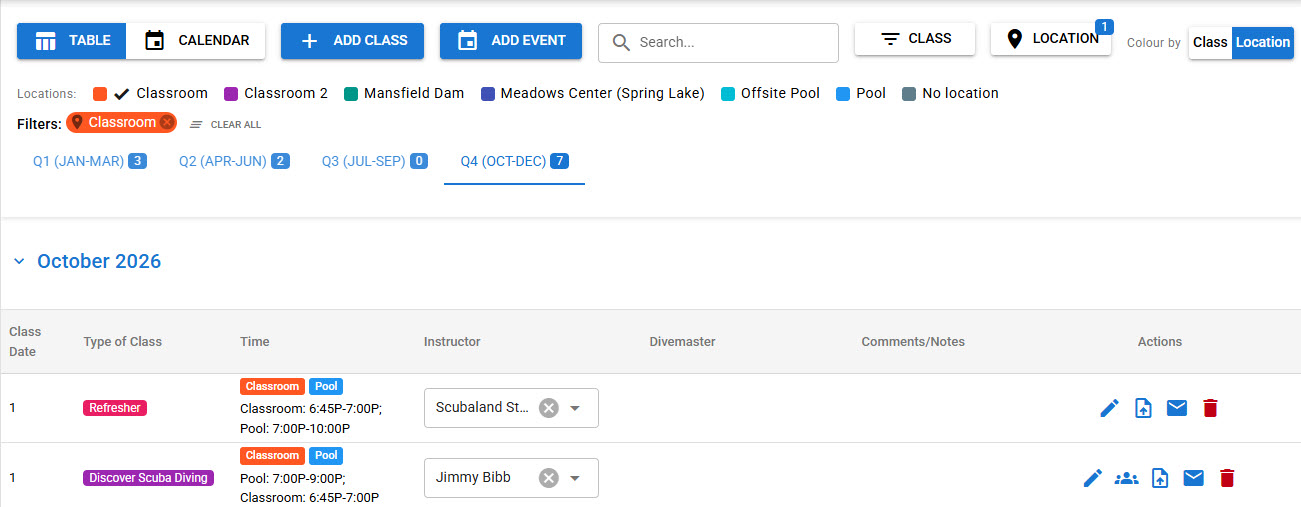
Pick locations from the Location menu or click them in the legend to see only pool sessions, only classroom sessions, or any mix. The filter works in both Table and Calendar views, the quarter tabs count the matching classes, and table rows show a colored chip for every location a class uses.
Find Open Pool Time Fast
Location colors and filters make shared pool and classroom space easy to check before you schedule the next class.
Start 60-Day Free TrialSee also: dive shop scheduling software, scuba instructor scheduling, and teaching reports.